WooCommerce Show Product Total Quantity

Product Total Quantity

If customers add quite a lot products to cart, when they view the cart, they are difficult to find out total how many they added to cart.

Or, if there is a situation: Purchase any product, get 20% discount if more than 100 pieces. Customers need to know how many they have added to cart.

Here is the coding to show total how many products added to cart:

<?php global $woocommerce; ?>
<?php echo sprintf(_n('%d', '%d', $woocommerce->cart->cart_contents_count, 'woothemes'), $woocommerce->cart->cart_contents_count);?>

I added the coding before Cart Subtotal, you may add to any place you want.

<tr class="cart-subtotal">
	<th><?php _e( 'Product Quantity', 'woocommerce' ); ?></th>
	<td><?php global $woocommerce; ?><?php echo sprintf(_n('%d', '%d', $woocommerce->cart->cart_contents_count, 'woothemes'), $woocommerce->cart->cart_contents_count);?></td>
</tr>

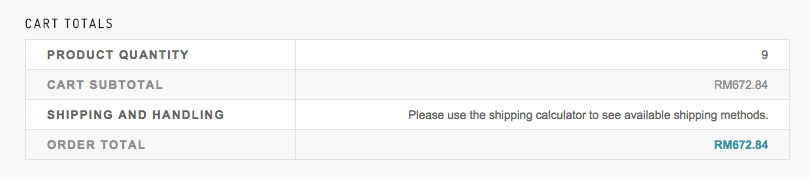
Show in Cart Page

To show the total quantity in cart page, you need to copy /plugins/woocommerce/templates/cart/cart-totals.php to your child theme /woocommerce/cart/ to prevent any error.

Result:
WooCommerce Show Product Total Quantity

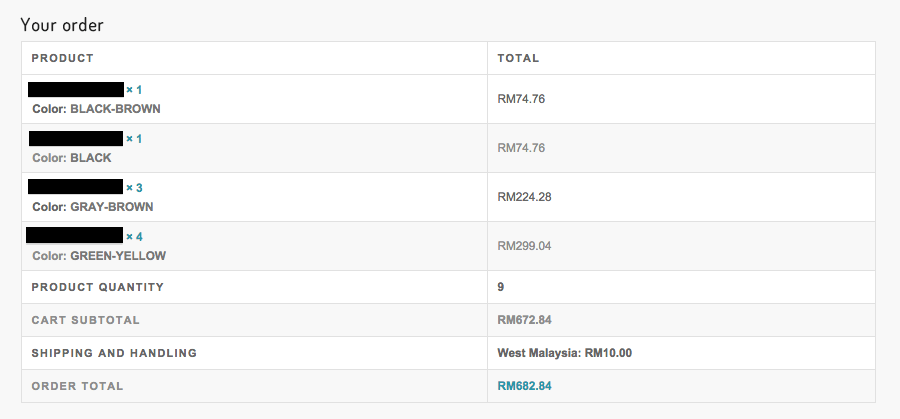
Show in Checkout Page

To show the total quantity in checkout page, you need to copy /plugins/woocommerce/templates/checkout/review-order.php to your child theme /woocommerce/checkout/ to prevent any error.

Result:
WooCommerce Show Product Total Quantity Checkout Page

External Link: WooCommerce – Show number of items in cart and total

WooCommerce Show Product Total Quantity
Please do hesitate to contact me if you found out any mistake or typo.


WooCommerce Show Save How Many Percentage

With WooCommerce Snippet

When using WooCommerce, some users would like to set the item with a sale price. Default WooCommerce just strikethrough the regular price and show only sale price. Customers don’t know how many actually they save. With this WooCommerce snippet, it will show how many percentage they sale from a regular price.

Paste below coding at your theme’s function.php

<?php
add_filter( 'woocommerce_sale_price_html', 'woocommerce_sales_price_percentage', 10, 2 );
function woocommerce_sales_price_percentage( $price, $product ) {
	$percentage = round( ( ( $product->regular_price - $product->sale_price ) / $product->regular_price ) * 100 );
	return $price . sprintf( __(' - Save %s', 'woocommerce' ), $percentage . '%' );
}
?>

Result:
WooCommerce Show Save How Many Percentage

Show Percentage Is More Attractive

Now, the percentage of discount is displayed next to sale price. Customers able to know how many actually they save from a regular price. With percentage of discount, it’s more attractive!

External Link: WooCommerce Percentage Saved Sale Price

WooCommerce Show Save How Many Percentage
Please do hesitate to contact me if you found out any mistake or typo.

What is WordPress Child Theme? Why We Need Child Theme?

WordPress Child Theme

What is WordPress Child Theme?

A WordPress child theme is a theme that inherits the functionality of another theme, called the parent theme, and allows you to modify, or add to, the functionality of the parent theme.

WordPress Child Theme is a WordPress theme that inherits its functionality from another WordPress theme (mostly parent theme). A child theme allows us change the functionality of the theme without edit the original theme template files. With this, we won’t be losing the ability to update the theme.

Why We Need WordPress Child Theme?

Developers like to use child theme to speed up their development. A good parent theme usually contains its own action hooks and filters. This allows developers to create a robust custom WordPress site using child theme in a short time.

Most DIY users create a child theme to tweak an existing theme without losing the ability to update the parent them if needed. They can modify the styles of elements by editing the style.css in child theme.

There are few advantages to use a WordPress Child Theme:

1. Updates

By using a child theme, users can update the parent theme safely because all of the modifications are saved in the child theme.

2. Extend

Users can add new functionality and much more by using a child theme. Users able to tweak a parent theme based on their requirement.

External Link: How to Create a Child Theme

Please do hesitate to contact me if you found out any mistake.

Why WordPress?

Why-WordPress

Sometimes, people will ask, why we want use WordPress to build up a content management system (CMS), official website or blog. Why we need it? WordPress is web software that can use to create a beautiful website or blog. People like to say that WordPress is both free and priceless at the same time. WordPress started as just a blogging system, but has evolved to be used as full content management system (CMS) and so much more through the thousands of plugins and widgets and themes. WordPress is limited only by your imagination, the customization opportunities are endless.

1. Free and Open Source

WordPress is completely free. It can be used on any personal or commercial projects without any restrictions.

2. User Friendly

WordPress designed for anyone, not just developers. There are written and recorded manuals available for users to easily learn how to use WordPress. “If you can do it in Word, you can do it in WordPress”, that’s true! Paste from Word too, the statement is more true than you would imagine. The Visual Editor also called WYSIWYG, is a system which content (text and images) displayed onscreen during editing appears in a form closely corresponding to its appearance when displayed as a finished post.

3. Plugins

Plugins allow users to add awesome photo galleries, sliders, shopping carts, forums, maps, and more great functionality. Those plugins can make users’ dreams come true. Most of the plugins are just clicked and installed.

4. Themes

There are a lot of themes available for WordPress, free or premium. Users will never have a problem finding a right theme for themes.